
Last Updated: October 14, 2026
Why Connect Your Facebook Business Page to Instagram
Learning how to connect facebook instagram to your business sounds more complicated than it is. Once linked, you can schedule posts, respond to messages, check analytics, and run ads across both networks from one place.
The real benefit: you post once and reach your audience on both platforms, saving time and keeping your brand voice consistent. That efficiency matters when you’re wearing multiple hats.
The connection happens through Meta Business Suite, Meta’s central hub for managing your business presence. Think of it as your command center.
What You Need Before You Start
Before you connect anything, make sure you have the right setup in place. Skip this, and you’ll hit roadblocks that feel mysterious but are easy to prevent.
Account Type Requirements
Your Instagram account type matters. You can’t just use any Instagram account to connect with Facebook. Here’s what works and what doesn’t.
Instagram Business Account or Creator Account, This is non-negotiable. A personal Instagram account won’t work, so convert it first. Conversion takes about two minutes and you can switch back anytime (though we don’t recommend it).
A business account gives you insights, contact buttons, and the ability to connect with Facebook. A creator account works similarly and is built for influencers and content creators. Both can connect to Facebook. A personal account cannot.
Facebook Business Page, On the Facebook side, you need a business page, not a personal profile. If you only have a personal profile, create a business page first. Facebook walks you through it.
Admin Access and Permissions
You need the right access to both accounts. This is where people often get stuck without realizing it.
Admin or Editor role on the Facebook Page, You must have admin or editor permissions on the Facebook Business Page you want to connect. If someone else created the page, ask them to grant you admin access first. Without it, you cannot authorize the connection.
Owner or Admin role on the Instagram account, You need to be the owner or have admin access to the Instagram business account. If you’re managing someone else’s account, ask them to make you an admin first.
Meta Account ownership, You also need a Meta account (your Facebook login works for this). If you’ve never used Meta Business Suite, you’ll create one the first time you log in. It’s automatic and painless.
How to Connect Instagram to Facebook Page in Meta Business Suite
This is where the actual work happens. We’ll cover both desktop and mobile, since most people use one or the other. Desktop is clearer, but mobile works fine if that’s what you have handy.
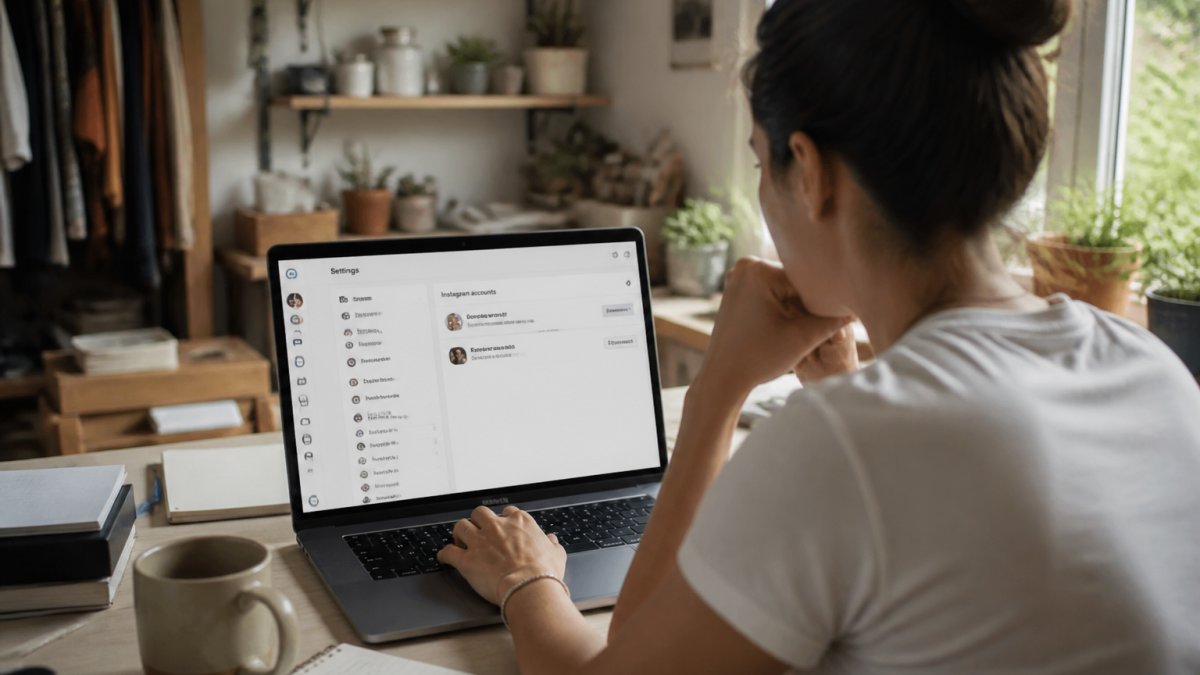
Desktop Connection Steps
Here’s the step-by-step process on desktop. Take your time, rushing is where mistakes happen.
Step 1: Go to Meta Business Suite Open your browser and head to business.facebook.com. Log in with your Facebook credentials.
Step 2: Find the Settings menu Look for the gear icon (settings) in the bottom left corner. Click it and you’ll see a dropdown menu.
Step 3: Select “Accounts” In the settings menu, click “Accounts.” This shows all accounts connected to your Meta Business Suite, including your Facebook Page.
Step 4: Click “Add Accounts” Click the “Add Accounts” or “Connect Account” button. Meta will ask which type of account you want to add. Select “Instagram Account.”
Step 5: Choose your Instagram account Meta will show a list of Instagram accounts tied to your login.
Step 6: Authorize the connection You may see a permission screen asking to allow Meta Business Suite to access your Instagram account. Click “Authorize” or “Confirm.”
Step 7: Verify the connection Once you authorize, you’ll return to the Accounts section. Your Instagram account should now appear alongside your Facebook Page.
Mobile Connection Steps
The mobile process is similar but the interface is slightly different. Here’s how to do it on your phone.
Step 1: Open Meta Business Suite app Download the Meta Business Suite app if you don’t have it. Open it and log in with your Facebook credentials.
Step 2: Tap the menu icon Look for three horizontal lines (the hamburger menu) at the bottom right of your screen. Tap it.
Step 3: Go to Settings Scroll down and tap “Settings.”
Step 4: Tap “Accounts” Tap “Accounts” to see all your connected accounts.
Step 5: Tap “Add Account” Tap the option to add a new account and select “Instagram Account.”
Step 6: Choose your Instagram account Select the business or creator account you want to connect.
Step 7: Authorize and confirm Follow the prompts to authorize. Once complete, your Instagram account will appear in your accounts list.
The mobile experience is nearly identical to desktop, just adapted for a smaller screen. If you get stuck, the desktop version is usually clearer for troubleshooting.
Instagram Business Account Not Connecting to Facebook Page: Common Causes
Sometimes the connection fails. Here are the most common reasons and how to fix them. Most are simple oversights, not technical failures.
Wrong account type, This is the number one culprit. A personal Instagram account won’t connect. Check your Instagram settings to see your account type.
Missing admin access, You don’t have admin or editor permissions on the Facebook Page, or you’re not the owner of the Instagram account. Ask whoever manages these accounts to grant you access, then try again.
Permissions not granted, You may have accidentally declined permission during authorization. Go back to Settings > Accounts and try again, clicking “Authorize” when prompted.
Using the wrong login, You logged into Meta Business Suite with one Facebook account, but the Instagram account is tied to a different login. Log out and log in with the correct credentials.
Instagram account already connected, If your Instagram account is already connected to a different Meta Business Suite or Facebook Page, disconnect it first. Go to your Instagram settings, find the Facebook connection, and disconnect.
Meta Business Suite Not Posting to Instagram: What’s Going Wrong
You’ve connected your accounts, but now scheduling or sharing to Instagram through Meta Business Suite isn’t working. Here’s what’s usually happening.
The account isn’t actually connected, Even if it appears in your accounts list, the connection might not be fully active. Go back to Accounts and check the status.
Instagram account permissions changed, Instagram sometimes revokes permissions if you change your password or security settings.
You’re trying to post the wrong content type, Some content types (like Reels or Stories) have different rules than regular feed posts. If a Reel won’t schedule, try a regular feed post first to confirm the connection is active.
The Facebook Page doesn’t have permission, Even if your Instagram account is connected, the Facebook Page you’re posting to might not have the right permissions. Make sure you’re an admin on both.
Browser or app cache issues, Your browser or app may be holding onto old data. Log out of Meta Business Suite completely, clear your browser cache (or close and reopen the app), and log back in.
Fix Instagram Sharing to Personal Facebook Account
This one trips people up because it’s a different kind of sharing. You might want to share Instagram content to a personal Facebook profile, not a business page. The setup is different.
To share Instagram posts to your personal Facebook profile, set this up in Instagram itself, not Meta Business Suite. Here’s how.
Go to your Instagram settings and find “Linked Accounts” or “Facebook.” Tap the option to link your personal Facebook profile and follow the prompts to authorize. Once linked, you can share individual posts to your personal profile when you post them.
The key difference: this is a one-way share from Instagram to Facebook, not a two-way connection through Meta Business Suite. It’s simpler but less powerful, since you can’t manage your personal profile the way you manage a business page.
Most small business owners want to connect business accounts, not personal ones. If you need both, you can set them up independently.
How to Verify Your Accounts Are Connected
Once you successfully connect facebook instagram, how do you know it actually worked? Here are the signs of a successful connection.
Check Meta Business Suite, Log into Meta Business Suite and go to Settings > Accounts.
Try scheduling a post, The real test is whether you can use the connection.
Check Instagram settings, Go to your Instagram account settings and look for “Linked Accounts” or “Facebook.” Your Facebook Page should be listed.
Look for the Facebook icon on Instagram, On your Instagram business profile on the web, you should see a small Facebook icon showing your account is connected.
Test cross-posting, Post something to Instagram and see if it automatically appears on your connected Facebook Page (if that setting is enabled).
Connecting your Facebook Business Page to Instagram is one of the quickest wins you can set up for your business.
If you’re managing multiple platforms and tools, you already know how fragmented things can get. That’s the problem AllyONE solves.
If you’re curious about how much time and money you’re currently losing to disconnected tools, we’ve built a free Business Audit & Tech Savings Calculator that shows you exactly where your tech stack is costing you.
Ready to simplify how you run your business? Get started with AllyONE and stop managing multiple platforms separately.
Table of Contents
- Why Connect Your Facebook Business Page to Instagram
- What You Need Before You Start
- Account Type Requirements
- Admin Access and Permissions
- How to Connect Instagram to Facebook Page in Meta Business Suite
- Desktop Connection Steps
- Mobile Connection Steps
- Instagram Business Account Not Connecting to Facebook Page: Common Causes
- Meta Business Suite Not Posting to Instagram: What’s Going Wrong
- Fix Instagram Sharing to Personal Facebook Account
- How to Verify Your Accounts Are Connected
Frequently Asked Questions
Why isn't my Instagram connecting to my Facebook business page?
The most common reasons are incorrect account type (your Instagram account must be a business or creator account, not personal), insufficient permissions (you need admin access to both accounts), or account ownership issues (both accounts must be under the same Meta account center). Check that you're using the correct Facebook Page—you can only connect one Instagram account per Page. If you recently changed your Instagram account type, wait a few hours for the system to sync before trying again.
Do I need an Instagram professional account to connect it to a Facebook Page?
Yes. Your Instagram account must be either a business account or a creator account. Personal Instagram accounts cannot be connected to Facebook Pages. If you're currently using a personal account, you'll need to switch to a business or creator account first. This is a quick change in your Instagram settings, and you won't lose any followers or content when you make the switch.
Why is my Instagram business account sharing to my personal Facebook account instead of my business page?
This usually happens when your Instagram account is linked to your personal Facebook profile rather than your business Page. You need to disconnect the personal connection first, then connect your Instagram account to the correct business Page through Meta Business Suite. Go to your Instagram settings, find the Facebook connection option, and select the business Page instead. If you have multiple Pages, double-check you're choosing the right one before confirming.
How do I check if my Facebook Page and Instagram account are properly connected?
On Facebook, visit your Page settings and look for the 'Instagram Accounts' section—you should see your Instagram handle listed there. On Instagram, go to Settings & privacy, then Account, and look for your connected Facebook Page. Both locations should show the connection. If either one is missing the other, the connection isn't complete and you'll need to reconnect them using the steps in this guide.